PDF Signing With Zapier
Automate PDF digital signing with Zapier integration. No-code workflows for Google Drive, Dropbox, forms. Get Adobe Acrobat blue seal.
Implementation proof
Ship faster with predictable trust behavior
Pick API, CLI, Web sealing, workflow automation, or cloud connector path, validate in Acrobat, and use trust documentation for compliance and architecture review.
~15m
CLI first success
Best for CI/CD and operations pipelines that need immediate signing output.
~30m
API first success
Recommended for product teams embedding trusted PDF sealing in services.
0
file uploads required
Only digest material is sent to sign endpoint; documents remain in your environment.
6
primary build paths
API, CLI, Web sealing, Zapier, Cloud Connector, and Power Automate paths fit different implementation teams.
Trusted Signatures Zapier Integration
Sign PDFs without code using our Zapier integration and get the Adobe Acrobat blue seal.
Table of Contents
- What You Can Do
- Prerequisites
- Step-by-Step Setup
- Field Reference
- Common Use Cases
- Testing & Troubleshooting
- Support
What You Can Do with the Zapier Integration
Automate PDF signing workflows:
- Sign PDFs from Google Drive, Dropbox, OneDrive
- Trigger signing when e.g., a form submits, or spreadsheet updates
- Send signed PDFs via email, Slack, or cloud storage
- Get Adobe Acrobat blue seal verification for compliance
Prerequisites
- Zapier account (free or paid)
- Trusted Signatures account with API access
- Basic Zapier knowledge (creating Zaps, connecting apps)
- PDF source (Google Drive, form uploads, etc.)
Step-by-Step Setup Guide
Step 1: Create Your Trigger
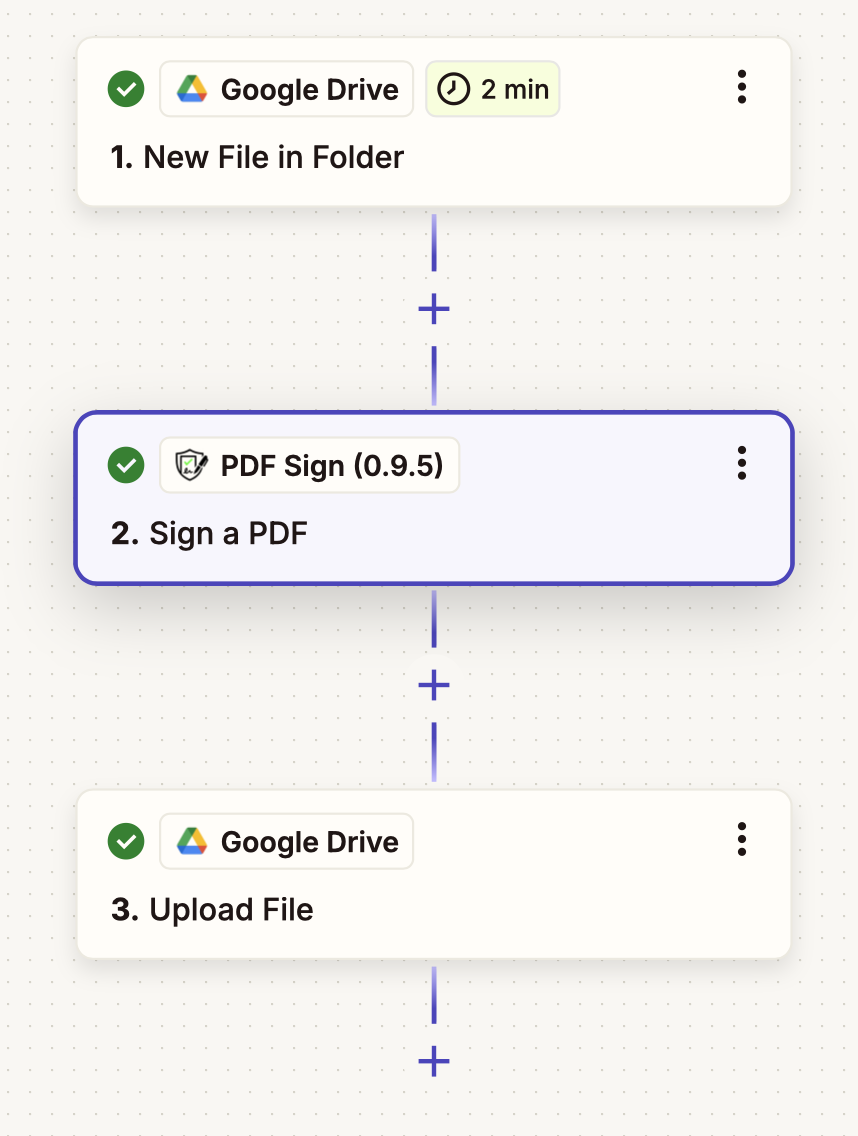
Step 2: Configure PDF Source

- Google Drive: New file in folder
- Forms: New form submission with PDF
- Email: New email attachment
- Dropbox/OneDrive: New file upload
Step 3: Add Trusted Signatures Action
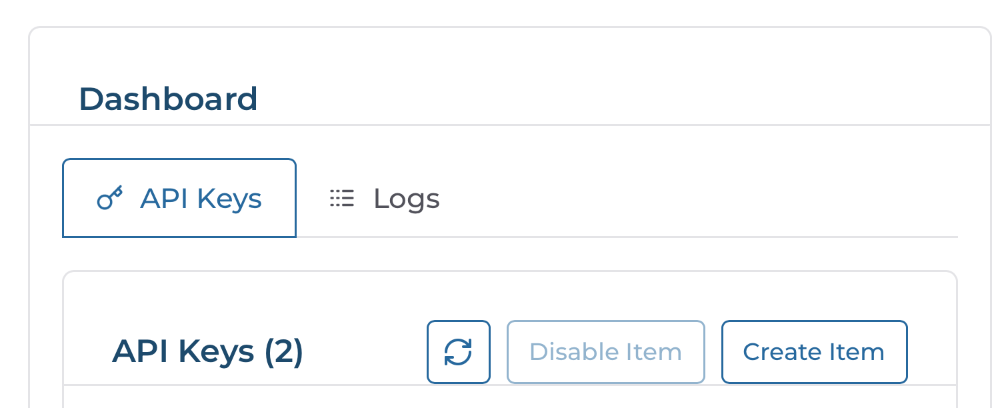 Go to Trusted Signatures Dashboard
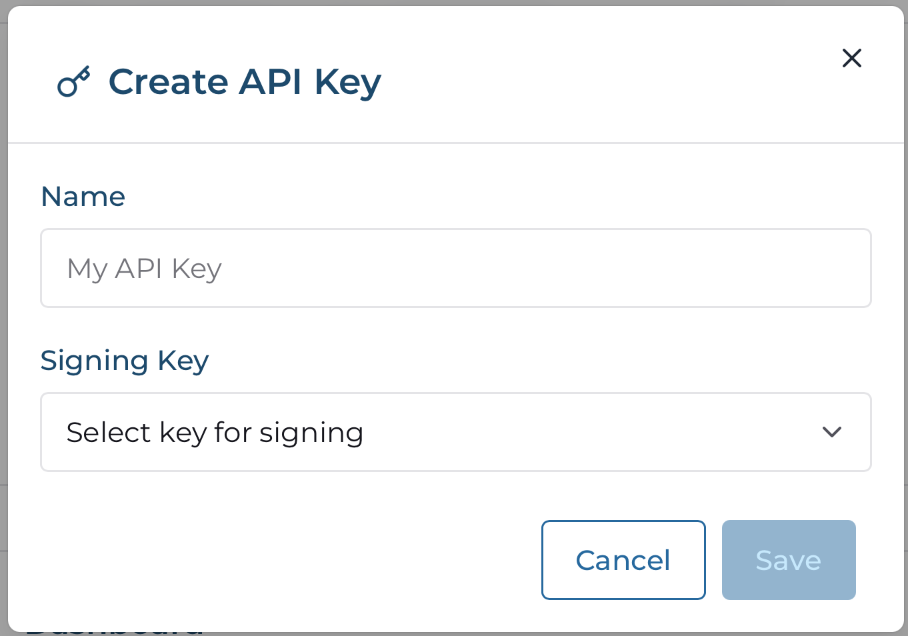 Create a new API Key with a descriptive name
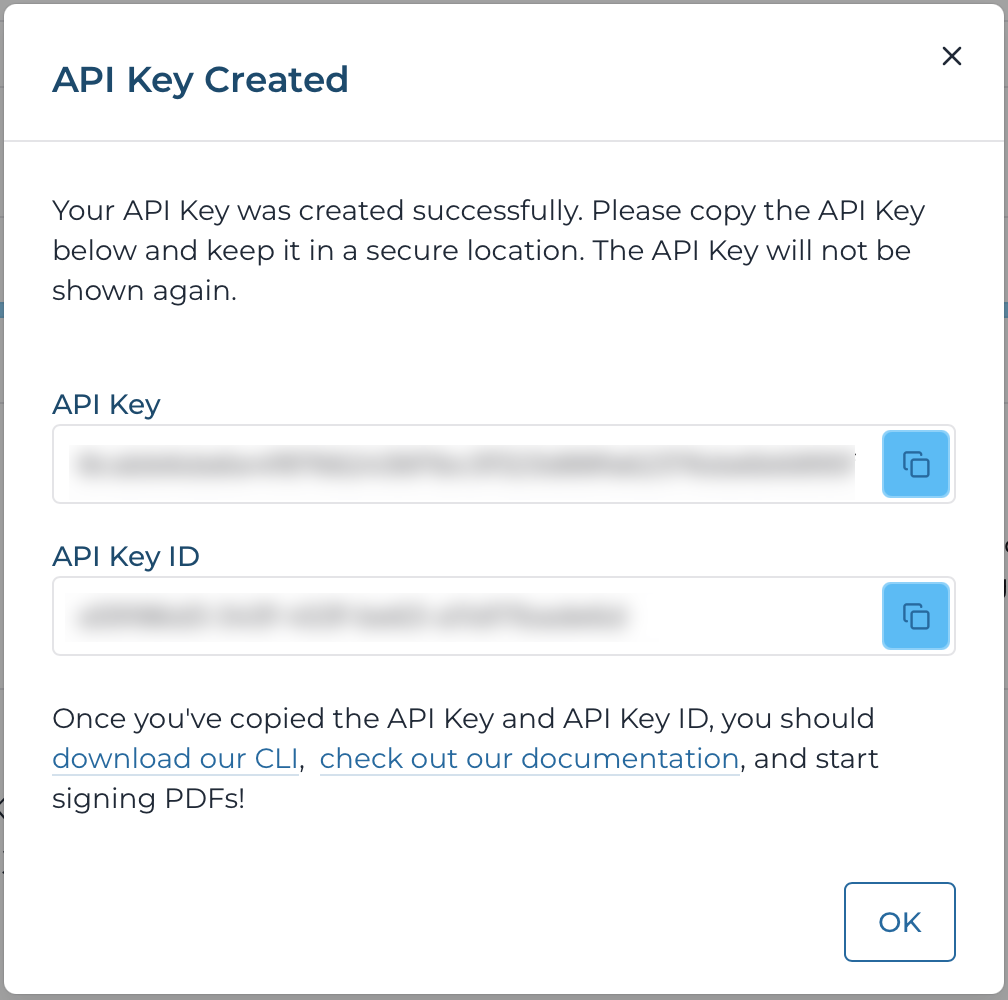 Copy the API Key ID and API Key
 In Zapier, paste these into the authentication fields
 When you're done, the fields should be configured
Step 4: Configure PDF Signing

- PDF To Sign: Select from previous step
- Filename: Original name or custom
Step 5: Set Up Output Destination
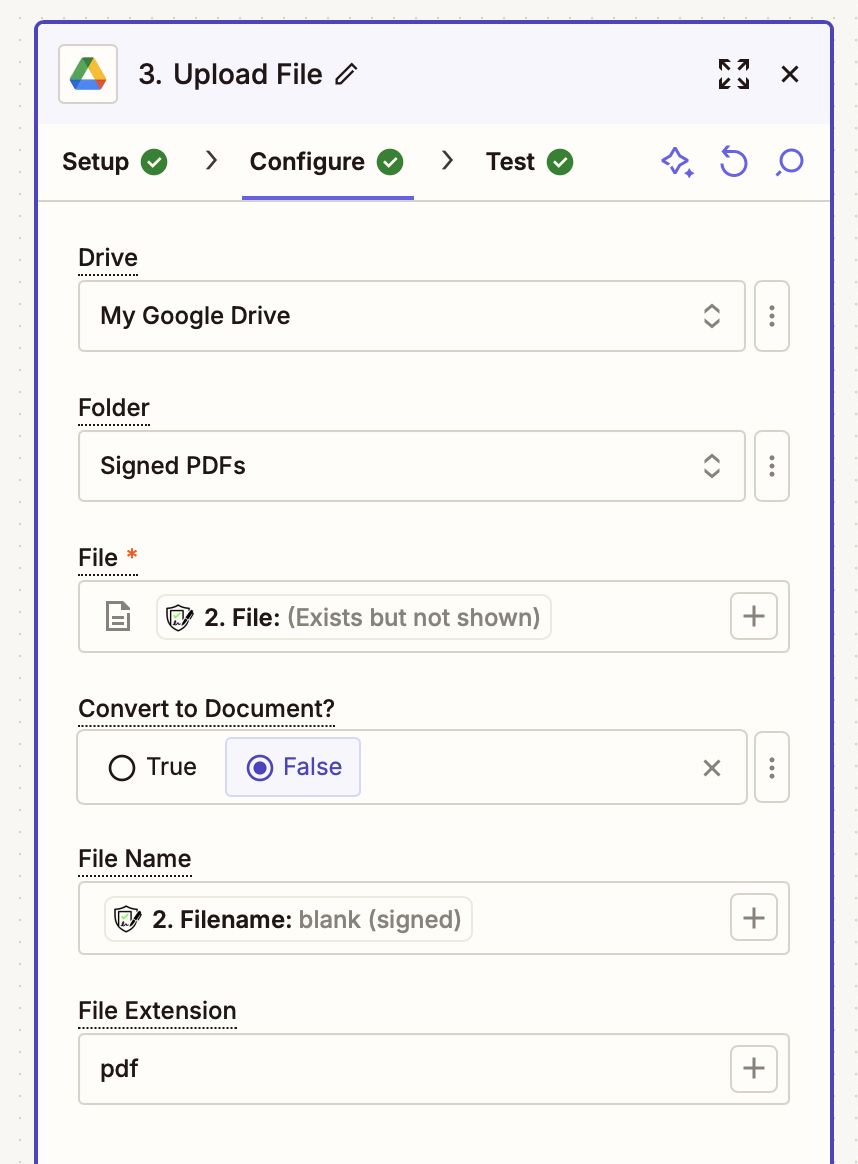
- Email: Send as attachment
- Google Drive: Save to folder
- Slack: Share in channel
- Dropbox: Upload to folder
Field Reference
Sign PDF Action Fields
| Field | Required | Description | Example |
|---|---|---|---|
| PDF File | ✅ | PDF file to sign | From Google Drive trigger |
| Filename | ✅ | Output filename | contract (signed).pdf |
Common Use Cases
1. Contract Workflow
Trigger: New Google Docs → PDF in Drive
Action: Sign PDF
Output: Email to client + save to “Signed Contracts” folder
2. Form Processing
Trigger: New Typeform submission with PDF
Action: Sign PDF
Output: Send via Slack notification
3. Compliance Documents
Trigger: New file in “Pending” folder
Action: Sign with timestamp
Output: Move to “Completed” folder
Testing & Troubleshooting
Testing Your Zap
- Use Zapier’s “Test” button for each step
- Check that PDF file transfers correctly
- Verify signed PDF has blue seal in Adobe Acrobat
- Confirm output destination receives file
Common Errors
Authentication Failed
- Verify API Key ID and API Key are correct
- Check API key hasn’t expired
PDF Processing Error
- Confirm file is a valid PDF
File Not Found
- Ensure PDF file field is mapped correctly
- Check file permissions in source system
- Verify file exists when Zap runs
Support
Need help? Contact us:
- Matrix Support: #support:trusted-signatures.com
- Email: support@trusted-signatures.com
- Documentation: API Docs
Need architectural review?
Book a technical walkthrough
For enterprise rollout, we can review trust model, controls, and integration patterns with your team.